> ## Documentation Index
> Fetch the complete documentation index at: https://docs.iearena.org/llms.txt
> Use this file to discover all available pages before exploring further.

# Web UI

> Add secrets and launch a remote rollout from Harbor Hub

## Adding Secrets

Unless you are running the `oracle` or `nop` agents which do not require API model inference, the first step will be adding your API secrets.
On the Harbor Hub, everything is owned by organizations. This includes jobs, trials, packages, and secrets.
When running remote rollouts, secrets will be selected from the organization chosen to own the job.

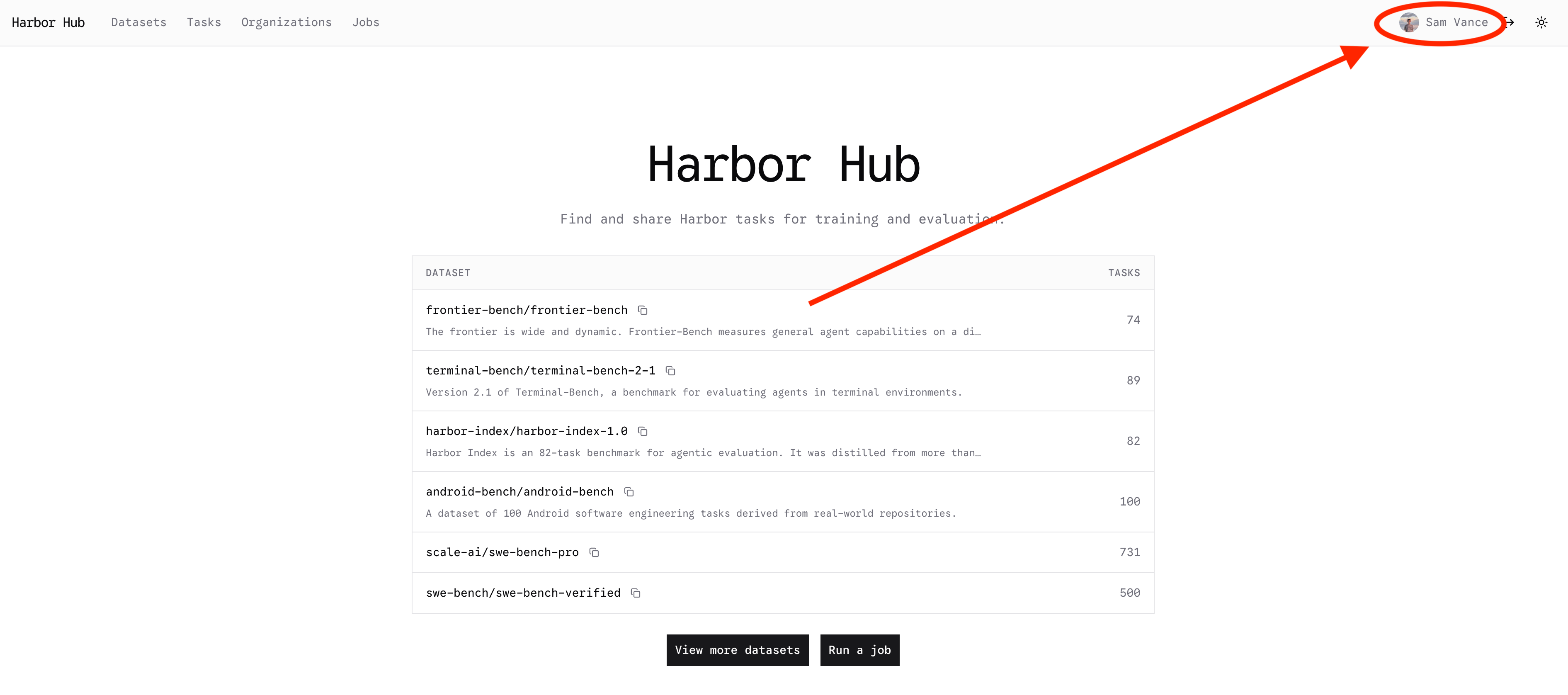
To add secrets to your personal org on the Web UI, first go to [The Hub](https://hub.harborframework.com)

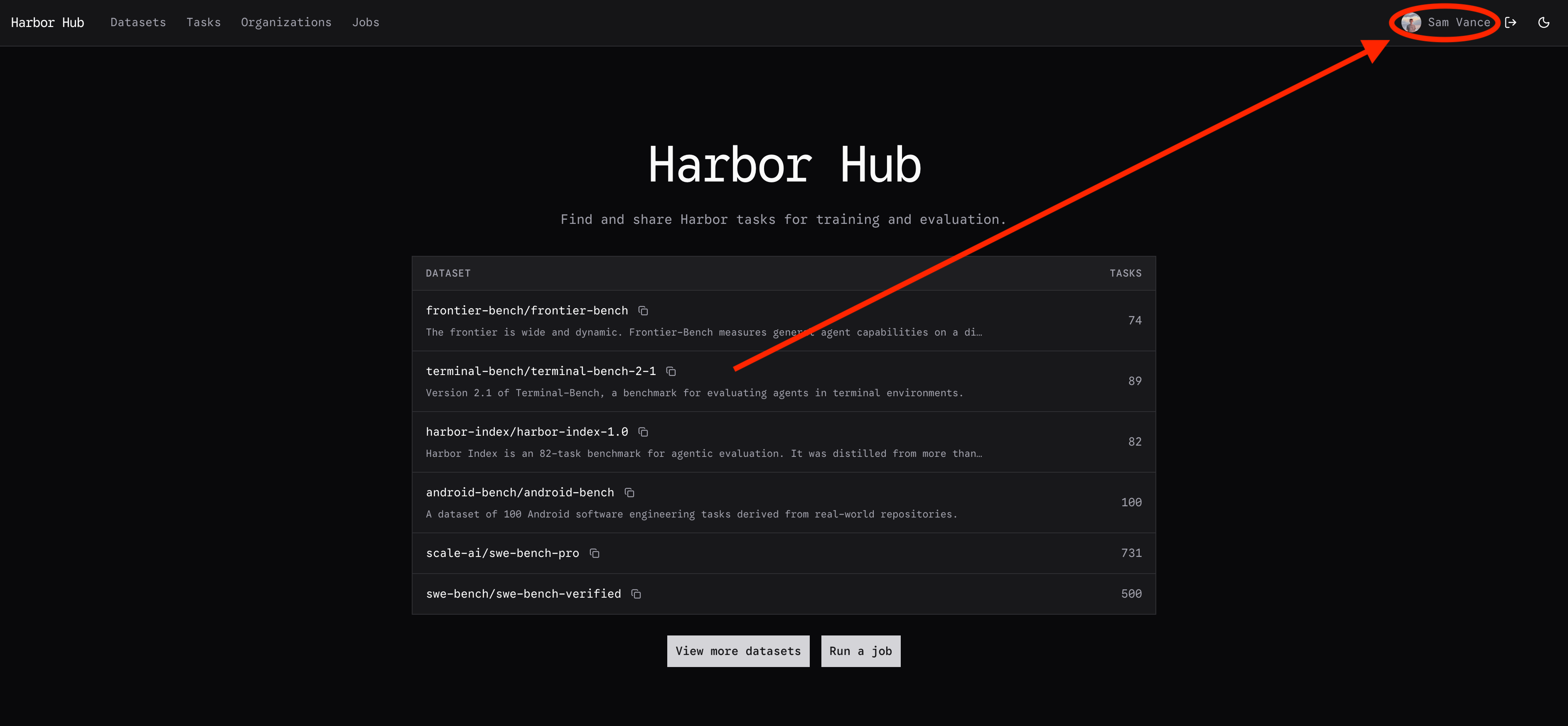
Click on your profile in the top right corner:

<div className="dark:hidden">
  <img src="https://mintcdn.com/kobe/Hk2RHT2c7Ve2Ukb3/images/hosted-harbor/hub-home.png?fit=max&auto=format&n=Hk2RHT2c7Ve2Ukb3&q=85&s=4011b6c4eb99c885ed737d9ddf18aa50" alt="The Harbor Hub home page, listing published datasets" width="3782" height="1676" data-path="images/hosted-harbor/hub-home.png" />
</div>

<div className="hidden dark:block">
  <img src="https://mintcdn.com/kobe/Hk2RHT2c7Ve2Ukb3/images/hosted-harbor/hub-home-dark.png?fit=max&auto=format&n=Hk2RHT2c7Ve2Ukb3&q=85&s=5b99511f14abff93c3d77946b3b8afb5" alt="The Harbor Hub home page, listing published datasets" width="3774" height="1748" data-path="images/hosted-harbor/hub-home-dark.png" />
</div>

Then click on your settings tab:

<div className="dark:hidden">
  <img src="https://mintcdn.com/kobe/Hk2RHT2c7Ve2Ukb3/images/hosted-harbor/hub-settings.png?fit=max&auto=format&n=Hk2RHT2c7Ve2Ukb3&q=85&s=179975735ee8ab216bce78844c11bbc6" alt="Profile Page" width="3784" height="526" data-path="images/hosted-harbor/hub-settings.png" />
</div>

<div className="hidden dark:block">
  <img src="https://mintcdn.com/kobe/Hk2RHT2c7Ve2Ukb3/images/hosted-harbor/hub-settings-dark.png?fit=max&auto=format&n=Hk2RHT2c7Ve2Ukb3&q=85&s=12b3a4237f00e70abca00e54bf0f10ff" alt="Profile Page" width="3772" height="520" data-path="images/hosted-harbor/hub-settings-dark.png" />
</div>

Scroll down to the secrets section, and click "Add secret":

<div className="dark:hidden">
  <img src="https://mintcdn.com/kobe/Hk2RHT2c7Ve2Ukb3/images/hosted-harbor/add-secrets.png?fit=max&auto=format&n=Hk2RHT2c7Ve2Ukb3&q=85&s=6bc5d14560fdf410b9a48ea39632b8b8" alt="Secrets Tab" width="2294" height="252" data-path="images/hosted-harbor/add-secrets.png" />
</div>

<div className="hidden dark:block">
  <img src="https://mintcdn.com/kobe/Hk2RHT2c7Ve2Ukb3/images/hosted-harbor/add-secrets-dark.png?fit=max&auto=format&n=Hk2RHT2c7Ve2Ukb3&q=85&s=29604aca8d18c63358648af5007e04f5" alt="Secrets Tab" width="2278" height="250" data-path="images/hosted-harbor/add-secrets-dark.png" />
</div>

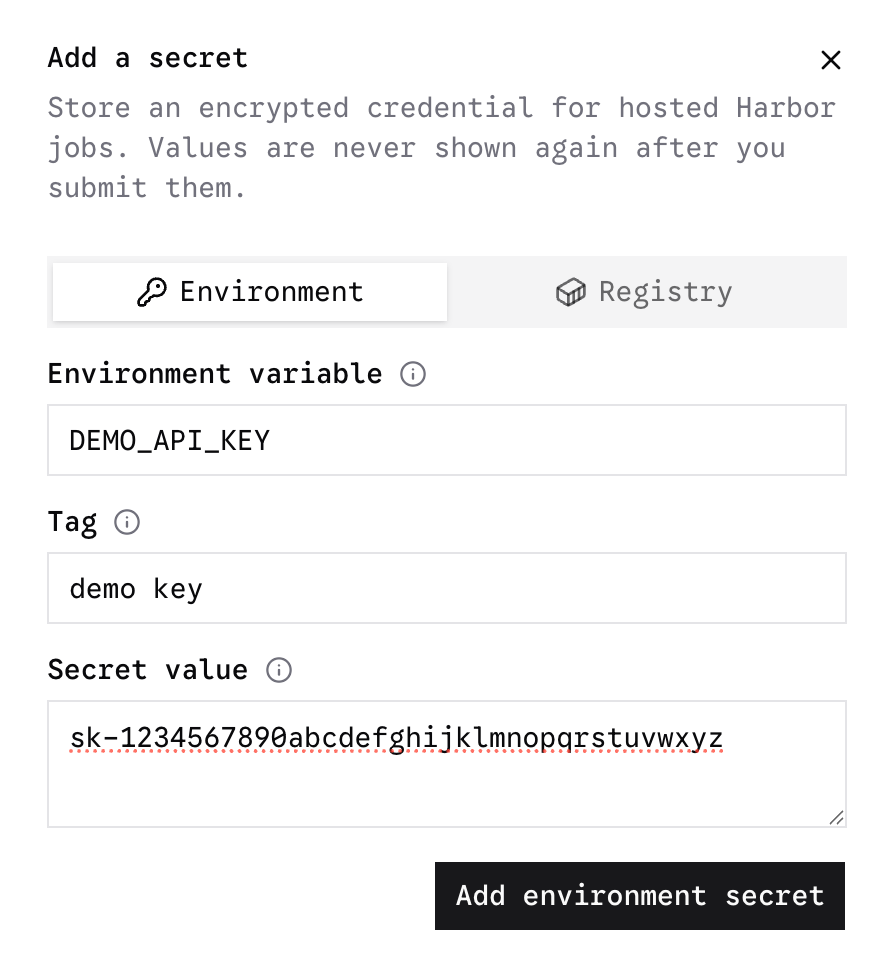
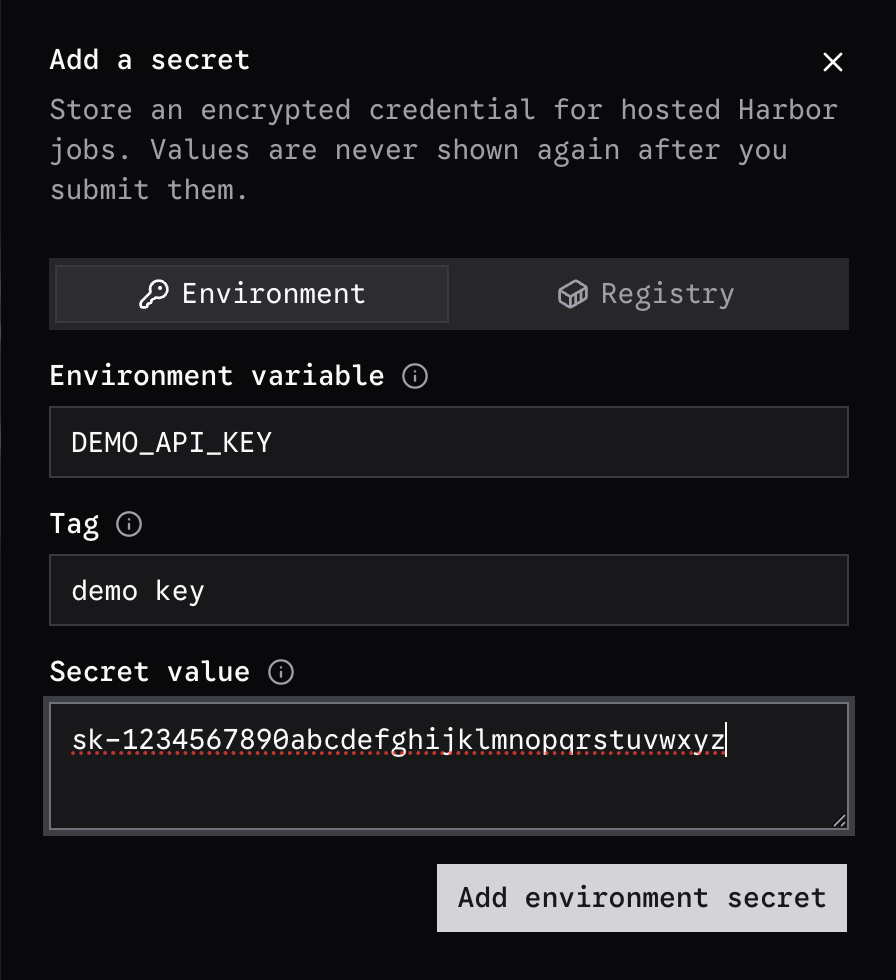
Add a registry secret or an environment variable secret:

<div className="max-w-sm dark:hidden">
  <img src="https://mintcdn.com/kobe/Hk2RHT2c7Ve2Ukb3/images/hosted-harbor/secret-modal.png?fit=max&auto=format&n=Hk2RHT2c7Ve2Ukb3&q=85&s=547f2125cf81f194c55d4af0b00be71f" alt="Secrets Modal" width="890" height="980" data-path="images/hosted-harbor/secret-modal.png" />
</div>

<div className="max-w-sm hidden dark:block">
  <img src="https://mintcdn.com/kobe/Hk2RHT2c7Ve2Ukb3/images/hosted-harbor/secret-modal-dark.png?fit=max&auto=format&n=Hk2RHT2c7Ve2Ukb3&q=85&s=2fe8b0a956939335eddd63b385cb6806" alt="Secrets Modal" width="896" height="980" data-path="images/hosted-harbor/secret-modal-dark.png" />
</div>

Environment secrets can be injected
into the agent runtime during a rollout, registry secrets are never injected, and only used to resolve private image repositories referenced by tasks.

## Adding Secrets To Organizations

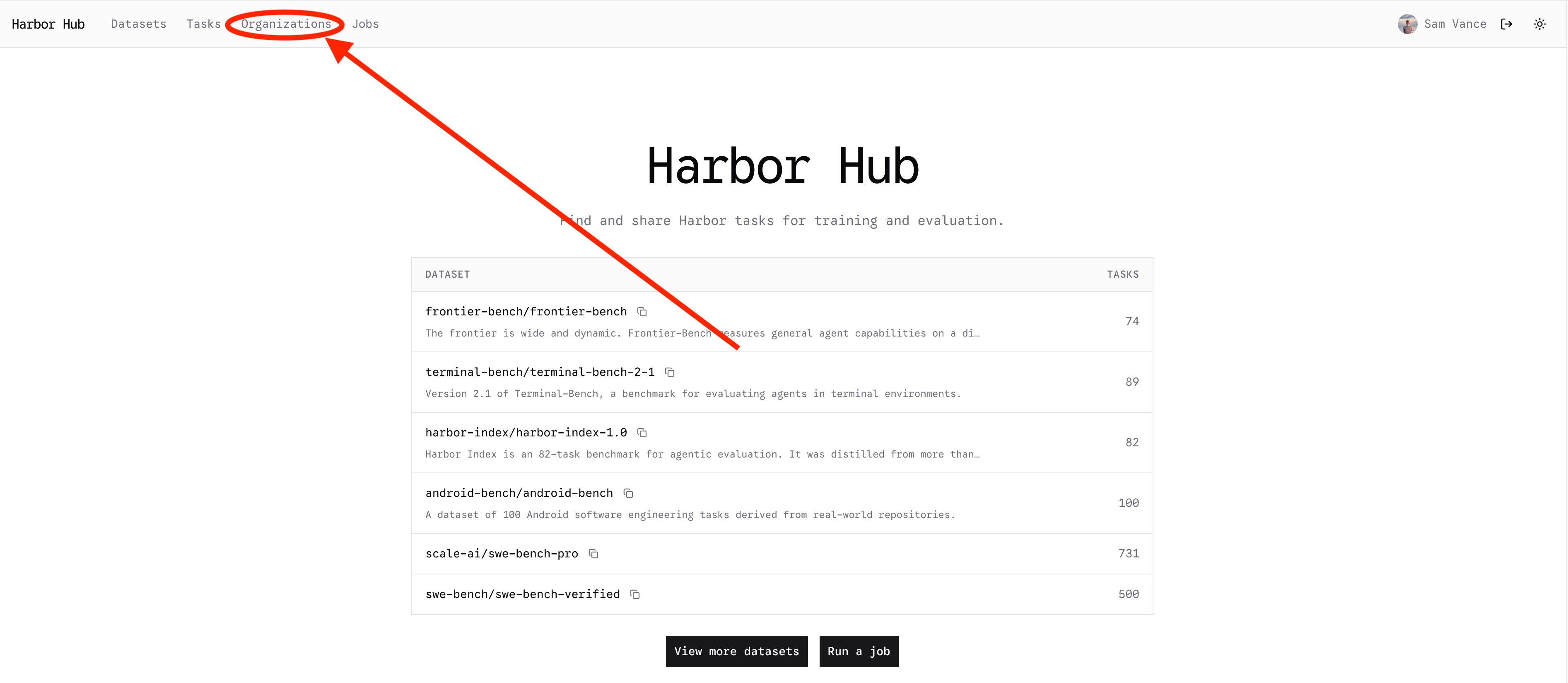
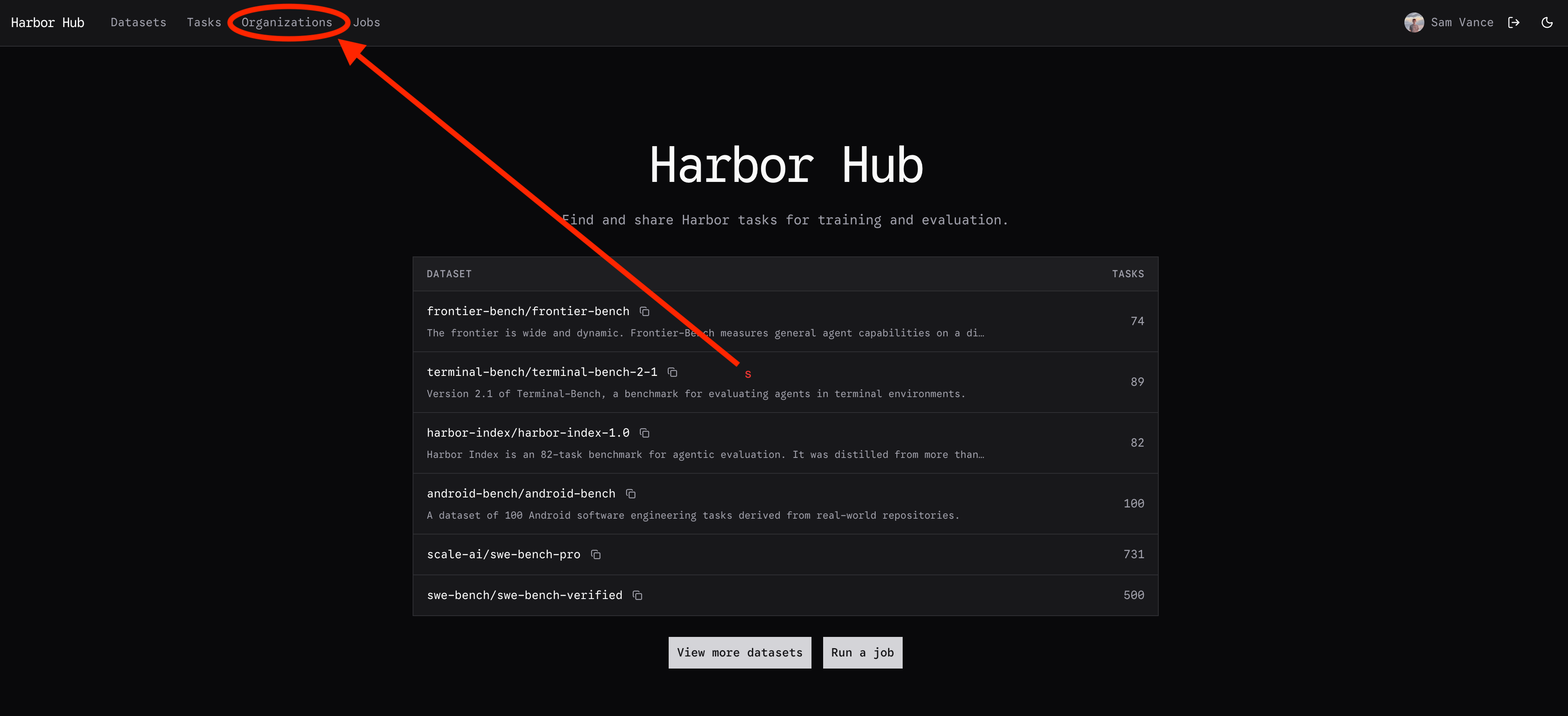
To add a secret to an organization you own, click the "Organization" button on the top of the page:

<div className="dark:hidden">
  <img src="https://mintcdn.com/kobe/Hk2RHT2c7Ve2Ukb3/images/hosted-harbor/org-button.png?fit=max&auto=format&n=Hk2RHT2c7Ve2Ukb3&q=85&s=32b187053fc8f1baec5036b9dfe29b35" alt="Org Button" width="3786" height="1648" data-path="images/hosted-harbor/org-button.png" />
</div>

<div className="hidden dark:block">
  <img src="https://mintcdn.com/kobe/Hk2RHT2c7Ve2Ukb3/images/hosted-harbor/org-button-dark.png?fit=max&auto=format&n=Hk2RHT2c7Ve2Ukb3&q=85&s=dcfa2661a99b1bb9eeea55a610ec8642" alt="Org Button" width="3766" height="1720" data-path="images/hosted-harbor/org-button-dark.png" />
</div>

Select an organization that you own, or create a new one.

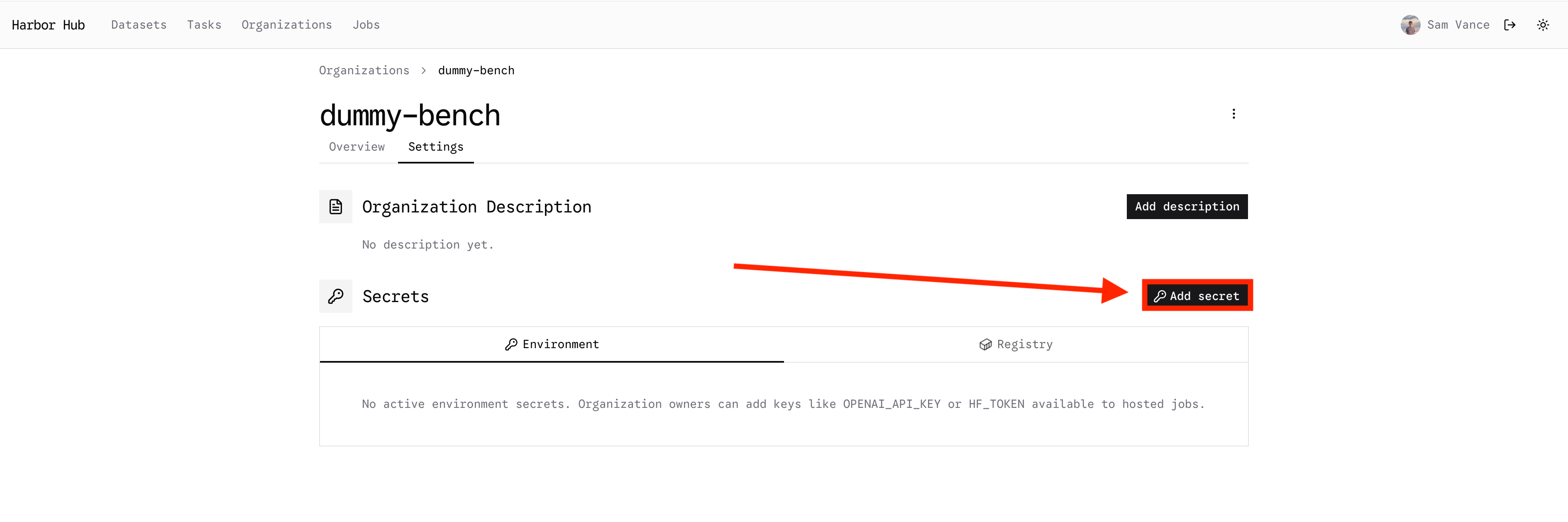
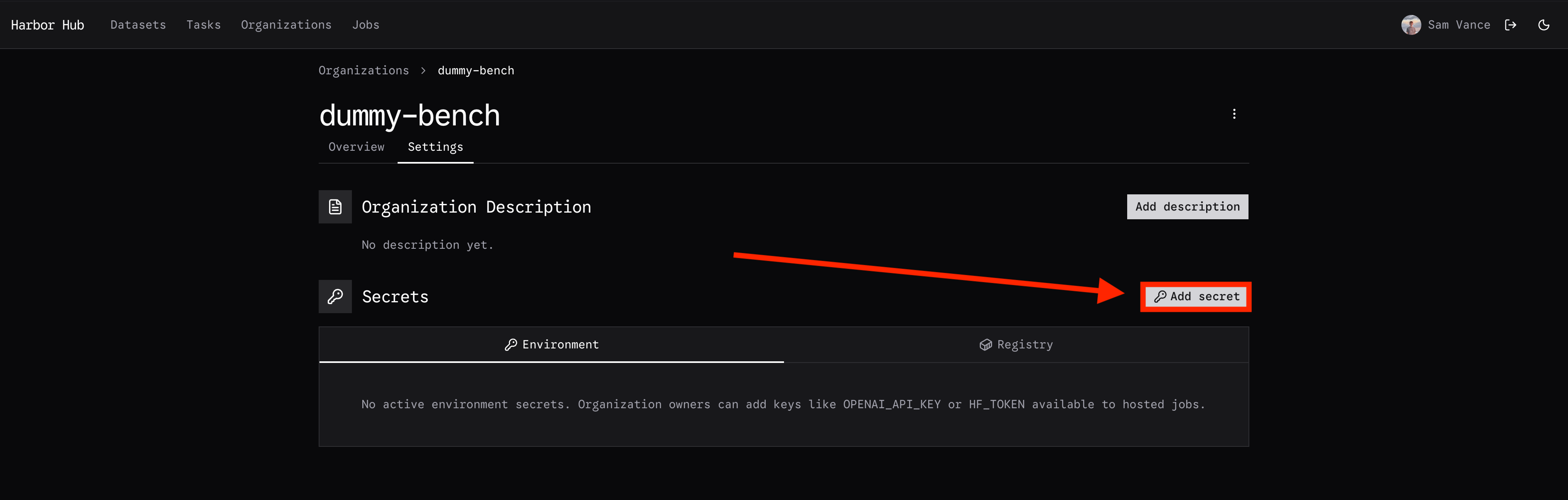
Then select the settings tab of the organization to view the saved secrets there. Note that only organization owners may modify secrets.

<div className="dark:hidden">
  <img src="https://mintcdn.com/kobe/Hk2RHT2c7Ve2Ukb3/images/hosted-harbor/org-settings.png?fit=max&auto=format&n=Hk2RHT2c7Ve2Ukb3&q=85&s=9b578d0423eac76485bb7a14b414d72d" alt="Add Org Secrets" width="3768" height="416" data-path="images/hosted-harbor/org-settings.png" />
</div>

<div className="hidden dark:block">
  <img src="https://mintcdn.com/kobe/Hk2RHT2c7Ve2Ukb3/images/hosted-harbor/org-settings-dark.png?fit=max&auto=format&n=Hk2RHT2c7Ve2Ukb3&q=85&s=13106a9c2ed18c36e5f17c346a120e75" alt="Add Org Secrets" width="3764" height="414" data-path="images/hosted-harbor/org-settings-dark.png" />
</div>

Finally, add a secret:

<div className="dark:hidden">
  <img src="https://mintcdn.com/kobe/Hk2RHT2c7Ve2Ukb3/images/hosted-harbor/org-add-secret.png?fit=max&auto=format&n=Hk2RHT2c7Ve2Ukb3&q=85&s=8c85f6a212ecb4a53b8a8aa3f012e092" alt="Add Org Secrets" width="3778" height="1258" data-path="images/hosted-harbor/org-add-secret.png" />
</div>

<div className="hidden dark:block">
  <img src="https://mintcdn.com/kobe/Hk2RHT2c7Ve2Ukb3/images/hosted-harbor/org-add-secret-dark.png?fit=max&auto=format&n=Hk2RHT2c7Ve2Ukb3&q=85&s=4f0dd0c156da4d15750db619da7bf060" alt="Add Org Secrets" width="3774" height="1204" data-path="images/hosted-harbor/org-add-secret-dark.png" />
</div>

## Launching a Job

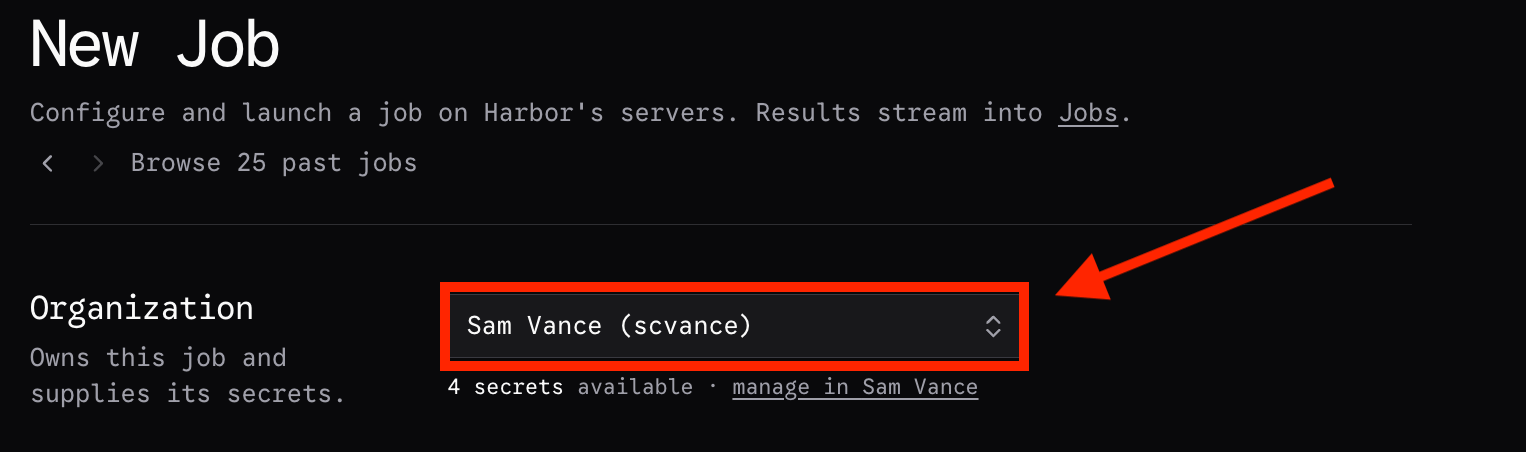
After adding your secrets, go to the [job launcher](https://hub.harborframework.com/jobs/launch).

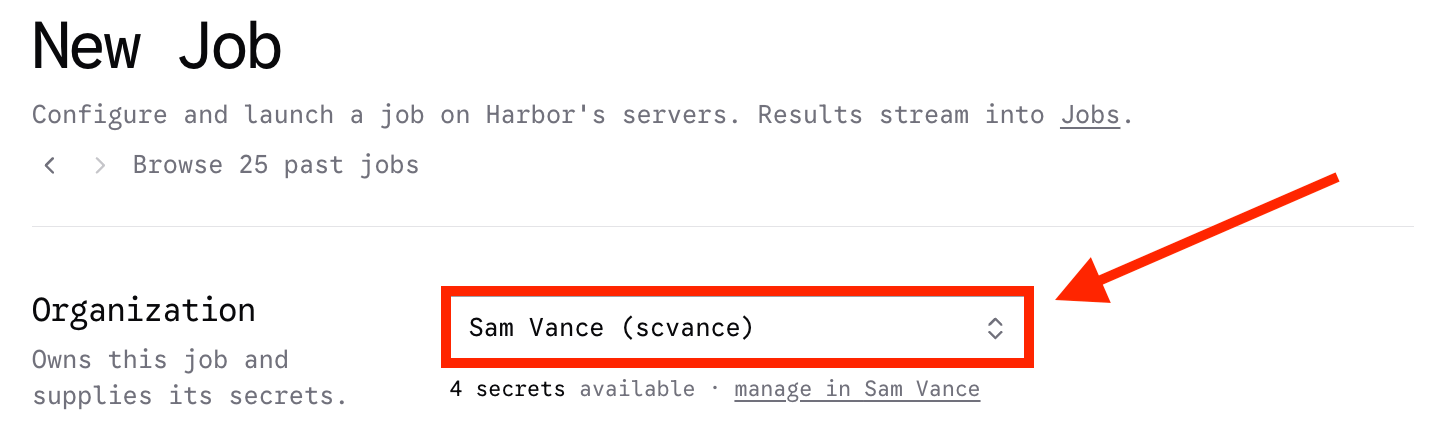
First, select the organization that should own this job.

<div className="dark:hidden">
  <img src="https://mintcdn.com/kobe/Hk2RHT2c7Ve2Ukb3/images/hosted-harbor/select-organization.png?fit=max&auto=format&n=Hk2RHT2c7Ve2Ukb3&q=85&s=e66287b6c24dee07bca8bc5ec8ce6601" alt="Select Organization" width="1446" height="444" data-path="images/hosted-harbor/select-organization.png" />
</div>

<div className="hidden dark:block">
  <img src="https://mintcdn.com/kobe/Hk2RHT2c7Ve2Ukb3/images/hosted-harbor/select-organization-dark.png?fit=max&auto=format&n=Hk2RHT2c7Ve2Ukb3&q=85&s=ed6513a383b8ff24aa83c1f69faab39e" alt="Select Organization" width="1526" height="452" data-path="images/hosted-harbor/select-organization-dark.png" />
</div>

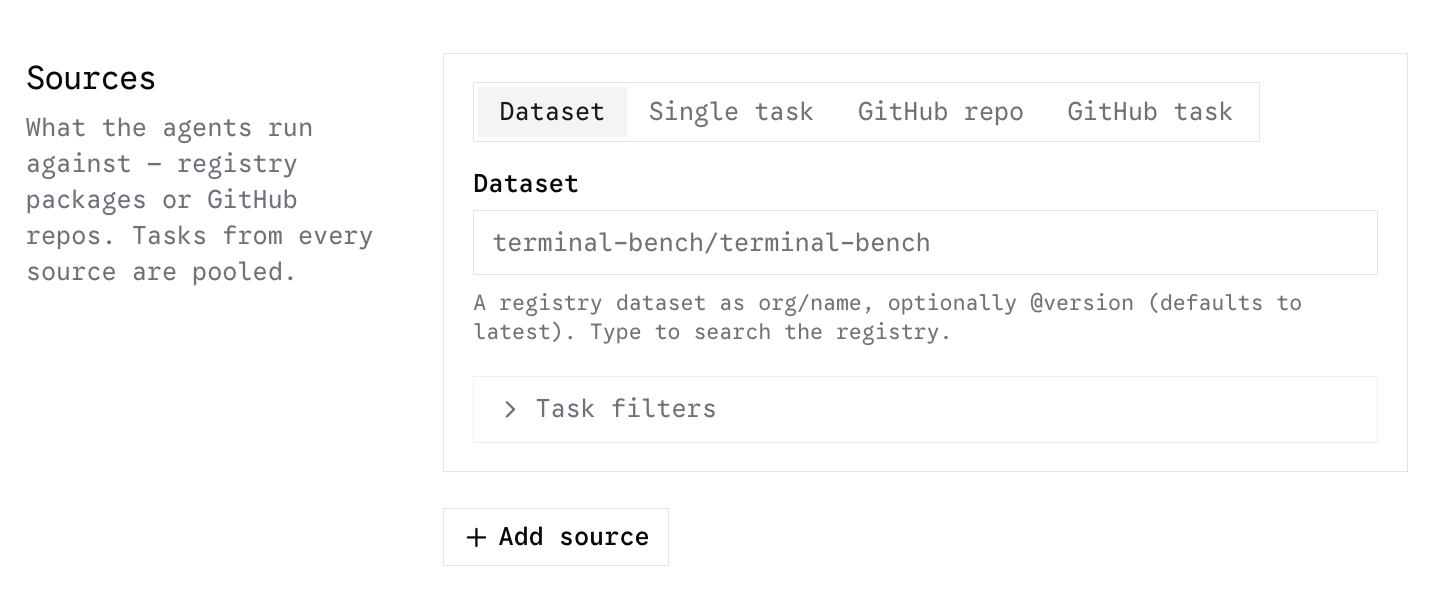
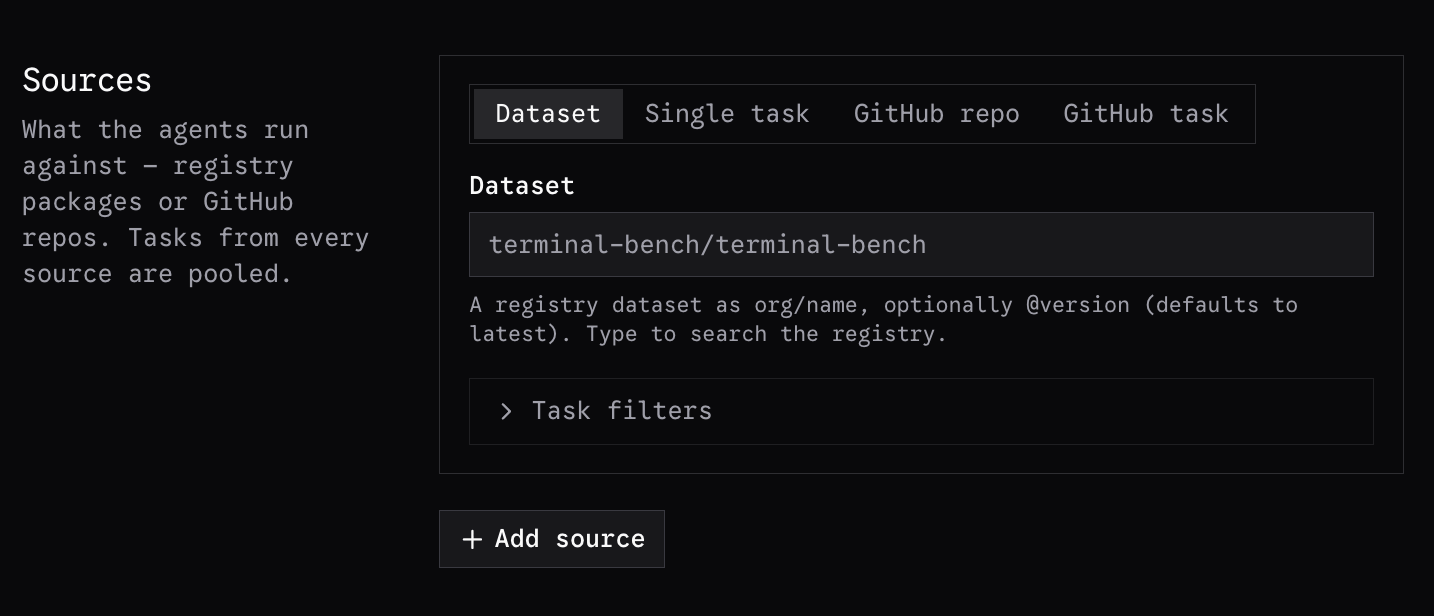
Then, select the dataset or task that you would like to evaluate. You can select tasks and
datasets that have been uploaded to the hub, or to GitHub. For private GitHub tasks, you must
first connect your private GitHub repositories from your profile settings.

<div className="dark:hidden">
  <img src="https://mintcdn.com/kobe/Hk2RHT2c7Ve2Ukb3/images/hosted-harbor/select-source.png?fit=max&auto=format&n=Hk2RHT2c7Ve2Ukb3&q=85&s=26ea308acd0f6af09f82a5d0483e63db" alt="Select Sources" width="1432" height="610" data-path="images/hosted-harbor/select-source.png" />
</div>

<div className="hidden dark:block">
  <img src="https://mintcdn.com/kobe/Hk2RHT2c7Ve2Ukb3/images/hosted-harbor/select-source-dark.png?fit=max&auto=format&n=Hk2RHT2c7Ve2Ukb3&q=85&s=8537f6bb147ea5f2c38e6b7913072dbf" alt="Select Sources" width="1434" height="616" data-path="images/hosted-harbor/select-source-dark.png" />
</div>

### Adding Agents

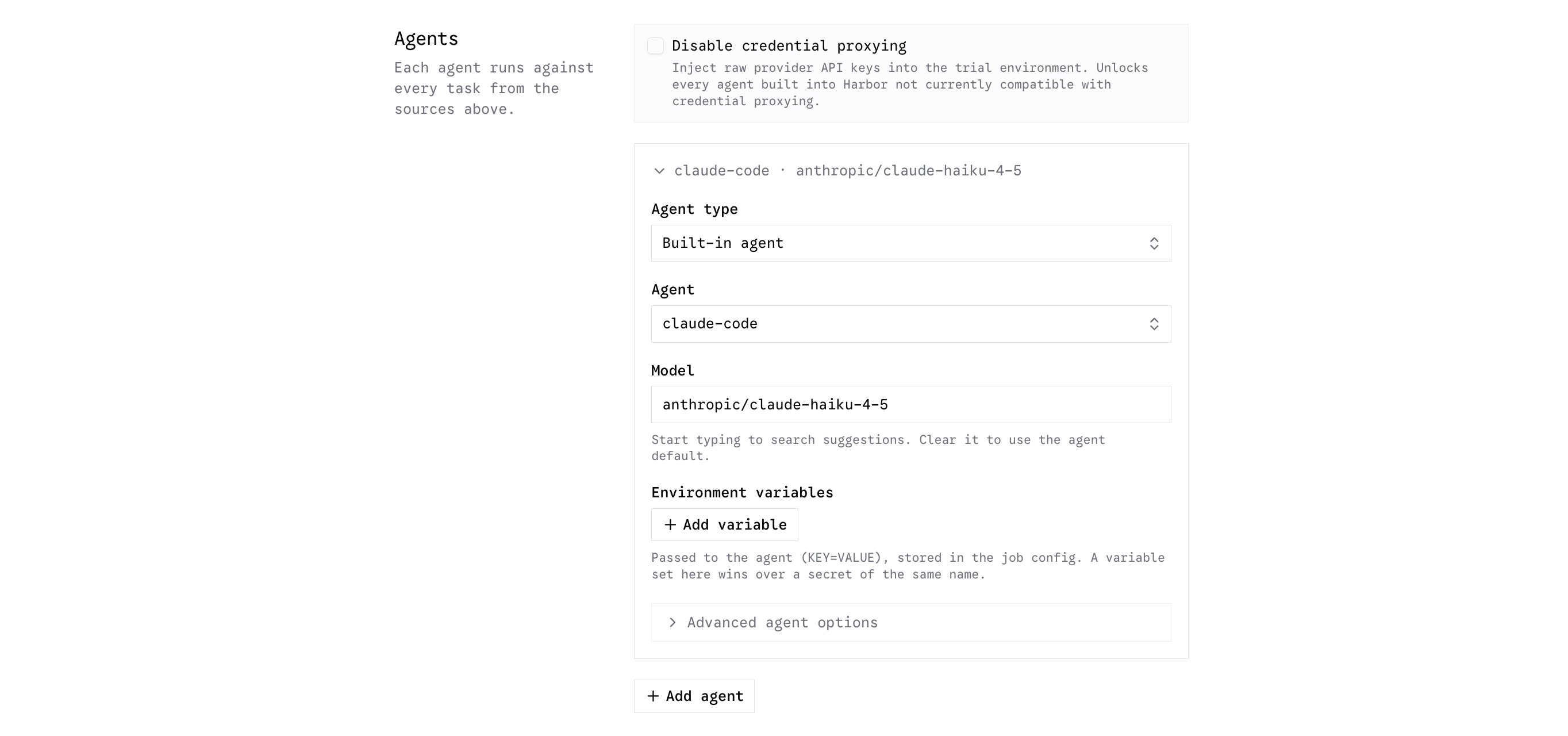
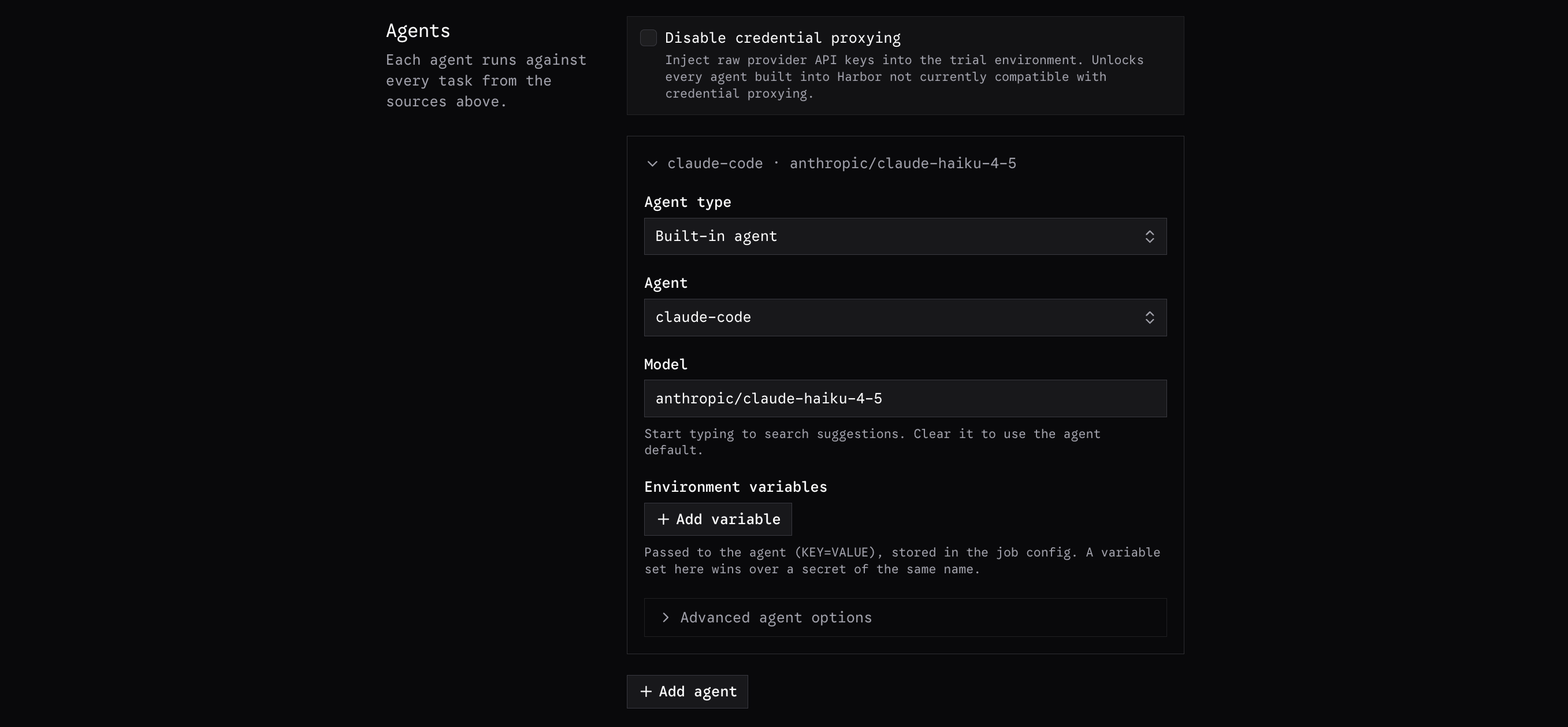
Next, select the agent/model combinations that you would like to evaluate. Harbor Hub defaults to
**direct credential mode**, with **Disable credential proxying** checked. This injects selected
credentials into the task sandbox, where agent code can read them. Gateway policy and accounting
do not apply in direct mode.

To opt into **gateway mode**, uncheck **Disable credential proxying**. Supported inference provider
keys are then replaced with scoped proxy credentials. Selected non-provider secrets still arrive
with their real values; see [Agent Secrets](/core-concepts/hosted-harbor/submitting-jobs#agent-secrets)
for provider support and credential handling.

<div className="dark:hidden">
  <img src="https://mintcdn.com/kobe/Hk2RHT2c7Ve2Ukb3/images/hosted-harbor/select-agent.png?fit=max&auto=format&n=Hk2RHT2c7Ve2Ukb3&q=85&s=ce89d4777ebf98bc38cdddb9c4bbf7c4" alt="Select Agent" width="2728" height="1280" data-path="images/hosted-harbor/select-agent.png" />
</div>

<div className="hidden dark:block">
  <img src="https://mintcdn.com/kobe/Hk2RHT2c7Ve2Ukb3/images/hosted-harbor/select-agent-dark.png?fit=max&auto=format&n=Hk2RHT2c7Ve2Ukb3&q=85&s=92bb3299191254b13d3f50aecdf332f2" alt="Select Agent" width="2714" height="1258" data-path="images/hosted-harbor/select-agent-dark.png" />
</div>

Custom agents must be stored on GitHub and compatible with ACP. Read `HOSTED_INFERENCE_TOKEN`
for the selected model credential. Gateway mode also sets `HOSTED_INFERENCE_URL`; direct mode
leaves it unset, so use the provider's normal endpoint. See
[Custom Agents](/core-concepts/hosted-harbor/custom-agents#inference-credentials) for the full contract.

After selecting your agent, you may add additional environment variables that you would like set.
THIS FIELD IS NOT FOR SECRETS. Environment variables placed in these fields are persisted plaintext
in the job config. Open **Agent Configuration** to configure the selected agent's options.
Agents with a declared options schema show typed controls and descriptions for their supported
kwargs. You can also inspect a deployed agent's options with
`harbor agent schema claude-code --hub`, replacing `claude-code` with the agent name.

### Choosing Secrets to Inject

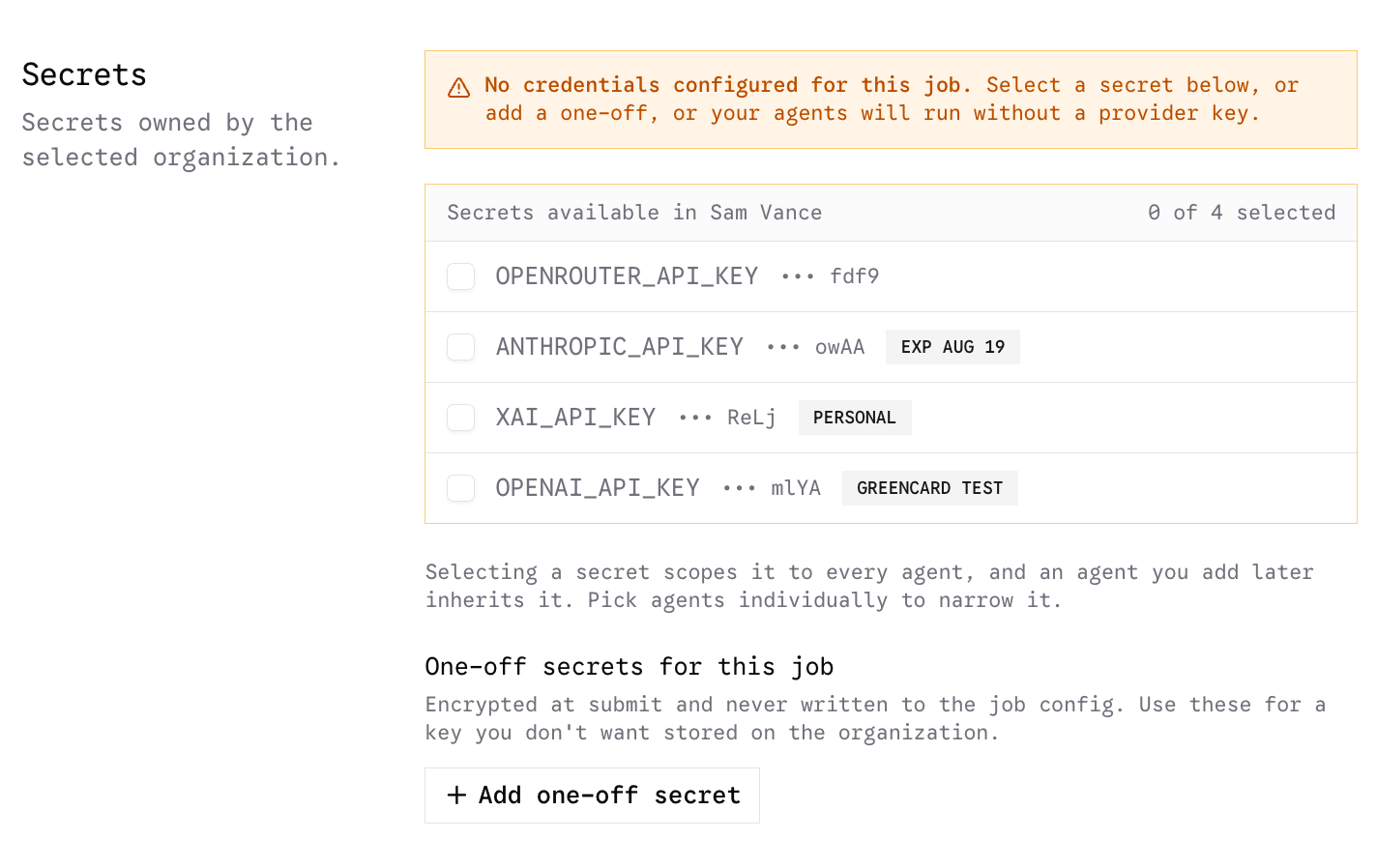
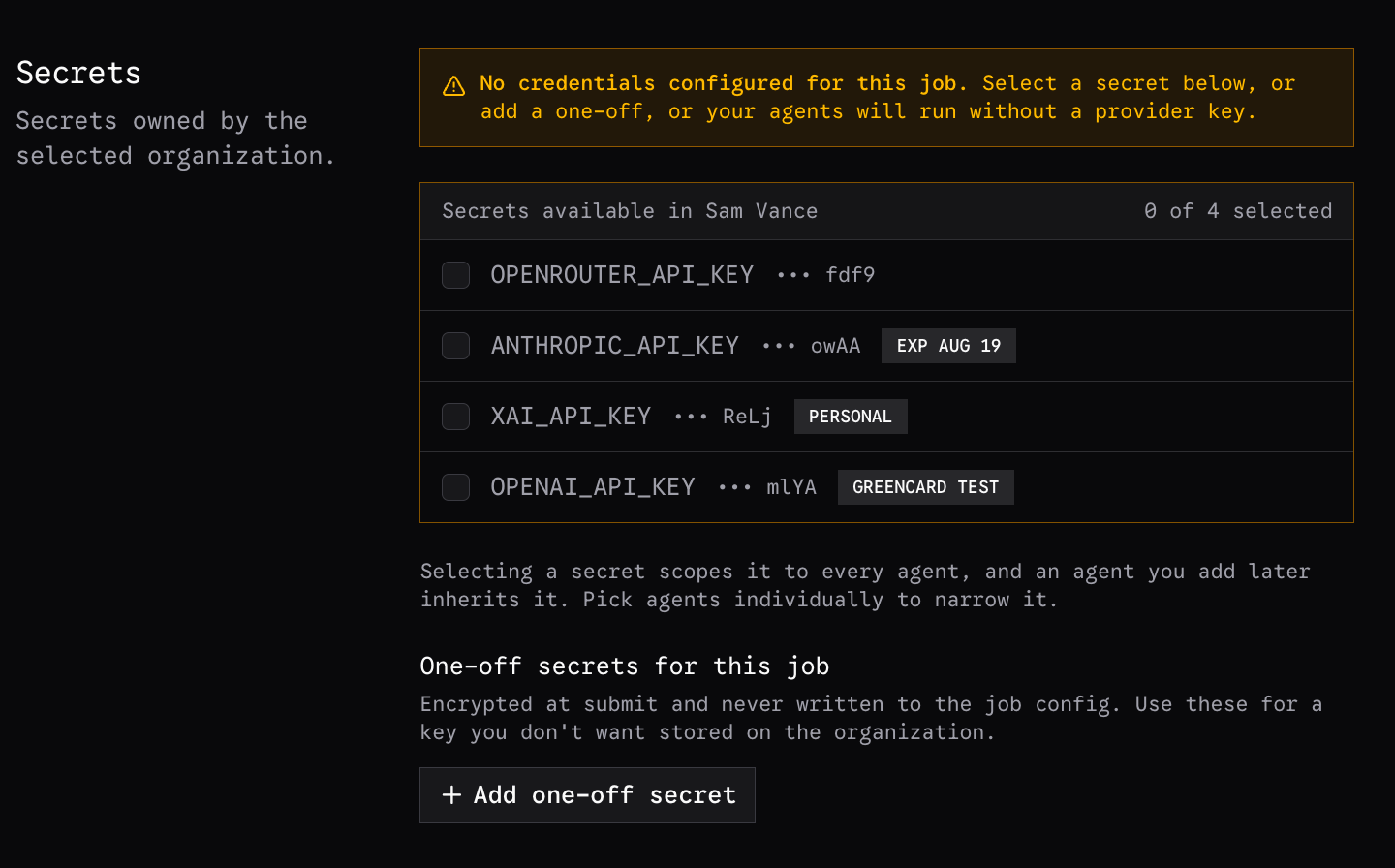
Once you have finished configuring the agents, choose which credentials each
one receives. The `Secrets` section lists the names of every secret uploaded to the
owning organization. You can select any number of them per
agent, including more than one inference provider key.

<div className="dark:hidden">
  <img src="https://mintcdn.com/kobe/Hk2RHT2c7Ve2Ukb3/images/hosted-harbor/select-secret-settings.png?fit=max&auto=format&n=Hk2RHT2c7Ve2Ukb3&q=85&s=a143f5516492a5f57c7caaeb8d383153" alt="Select Secrets" width="1424" height="898" data-path="images/hosted-harbor/select-secret-settings.png" />
</div>

<div className="hidden dark:block">
  <img src="https://mintcdn.com/kobe/Hk2RHT2c7Ve2Ukb3/images/hosted-harbor/select-secret-settings-dark.png?fit=max&auto=format&n=Hk2RHT2c7Ve2Ukb3&q=85&s=fc987baf292a0b371d156de011b0b59f" alt="Select Secrets" width="1440" height="896" data-path="images/hosted-harbor/select-secret-settings-dark.png" />
</div>

Every selected secret is injected. One of them is also renamed: the key whose
provider matches that agent's selected model arrives under the name the agent
expects, so you do not have to store a second copy of it under a different
name. Everything else you selected is injected under its own name.

For example, running `claude-code` against `openrouter/zai/glm-5.2`, you would
select your organization's `OPENROUTER_API_KEY`. It matches the model's
`openrouter/` provider, and `claude-code` reads its credential from
`ANTHROPIC_API_KEY`, so that is the name it is injected under. Any other
secrets you selected, an `OPENAI_API_KEY`, a token a task needs, arrive
unchanged.

If none of the selected secrets match the model's provider, nothing is renamed
and the agent starts without a credential, so the trial fails with a
credential error. Selecting only `OPENAI_API_KEY` for that OpenRouter model
does exactly this: the key is injected under its own name, but it is not the
one the model needs.

### Overall Job Settings

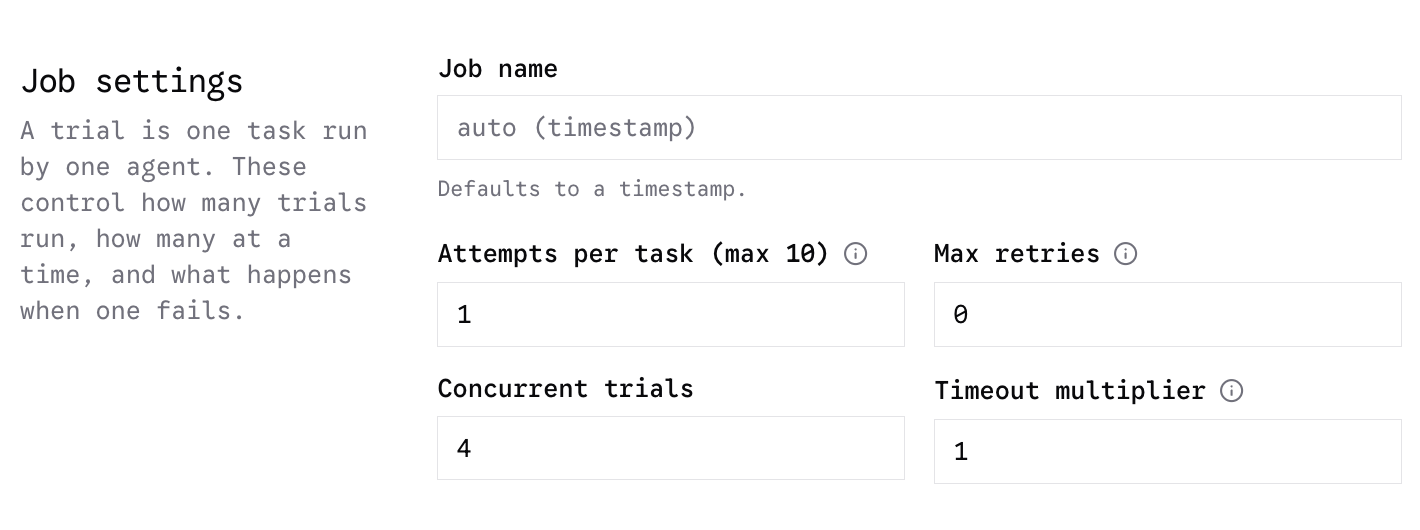
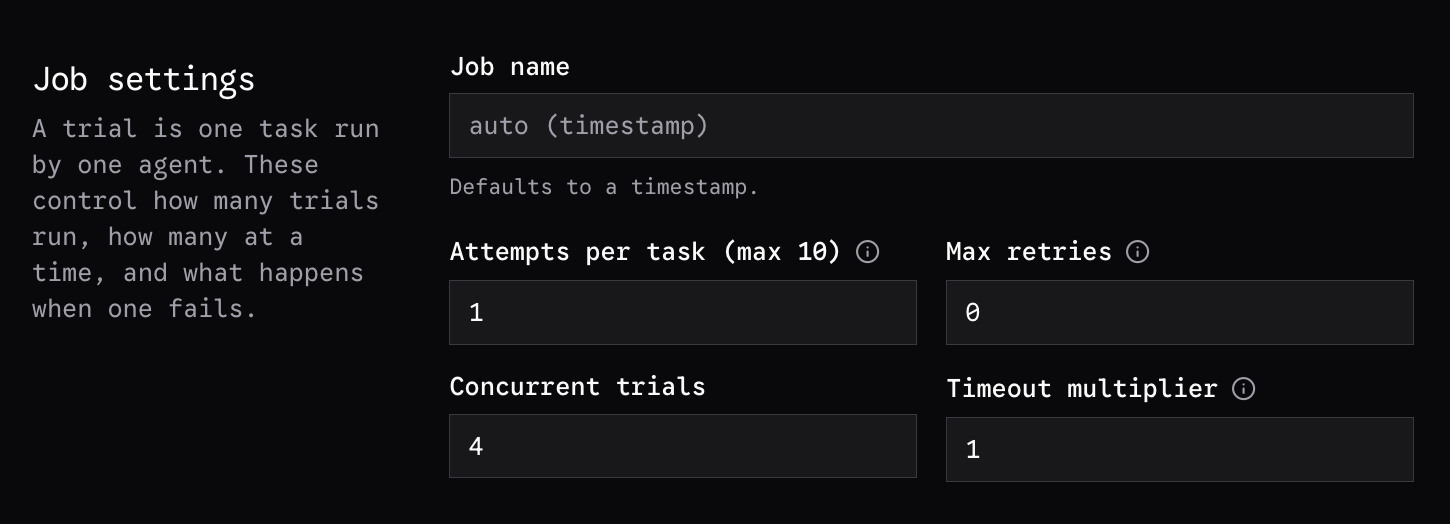
The overall job settings include the name, retries, attempts, concurrency, and timeout multiplier.

<div className="dark:hidden">
  <img src="https://mintcdn.com/kobe/Hk2RHT2c7Ve2Ukb3/images/hosted-harbor/select-job-settings.png?fit=max&auto=format&n=Hk2RHT2c7Ve2Ukb3&q=85&s=c8b29c993fc08a9fb41fc61b0653339c" alt="Select Job Settings" width="1420" height="530" data-path="images/hosted-harbor/select-job-settings.png" />
</div>

<div className="hidden dark:block">
  <img src="https://mintcdn.com/kobe/Hk2RHT2c7Ve2Ukb3/images/hosted-harbor/select-job-settings-dark.png?fit=max&auto=format&n=Hk2RHT2c7Ve2Ukb3&q=85&s=99c5aaa04f23d1065d7ebf6d7635c821" alt="Select Job Settings" width="1450" height="524" data-path="images/hosted-harbor/select-job-settings-dark.png" />
</div>

**Name**

Naming the job is recommended as the default timestamp can be difficult to identify later.

**Retries**

Retries set the maximum number of additional executions for each trial after an eligible exception.
The default is `0`, which disables retries. Eligibility depends on the exception include/exclude
settings and the remaining retry budget; a low score alone does not trigger a retry. See
[Retry Settings](/core-concepts/hosted-harbor/submitting-jobs#retry-settings).

**Attempts**

Attempts per task set the number of independent trials for each task and agent combination.
For example, 4 attempts with 3 retries allow up to `4 × (1 + 3) = 16` executions per task per agent:
each of the 4 trials can run once and retry up to 3 times. Retries replace a failed execution;
they do not add scored samples. There are still 4 trial slots, and a trial that exhausts its retries
may finish with an error instead of a score.

**Concurrent Trials**

Concurrency can be set based on your api key rate limits. Harbor Hub will monitor concurrency
and back off if rate limits are causing failures, but it is recommended to set concurrency
such that rate limit failures do not occur.

**Timeout Multiplier**

Finally, the timeout multiplier refers to the time limit an agent has to complete a task.
The time limit is declared in the task, but if you would like to modify this timeout without
modifying the task, you can set the timeout multiplier to something other than `1.0`.
e.g. `0.5` gives half of the time limit, `2.0` gives twice as much time.

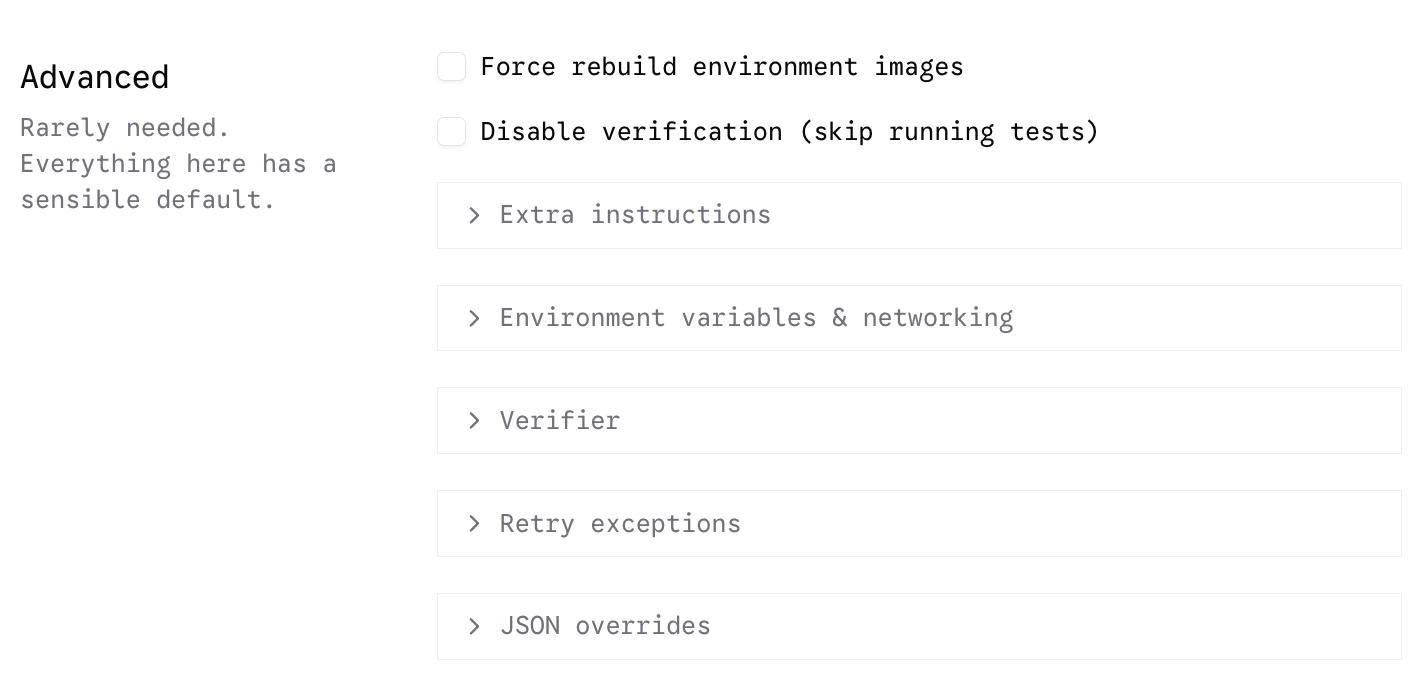
### Advanced Job Settings
<div className="dark:hidden">
  <img src="https://mintcdn.com/kobe/Hk2RHT2c7Ve2Ukb3/images/hosted-harbor/advanced-options.png?fit=max&auto=format&n=Hk2RHT2c7Ve2Ukb3&q=85&s=e204eac7fa22de75a09fa6df733034a1" alt="Select Advanced Settings" width="1424" height="700" data-path="images/hosted-harbor/advanced-options.png" />
</div>

<div className="hidden dark:block">
  <img src="https://mintcdn.com/kobe/Hk2RHT2c7Ve2Ukb3/images/hosted-harbor/advanced-options-dark.png?fit=max&auto=format&n=Hk2RHT2c7Ve2Ukb3&q=85&s=1a50293d7009032e6b0f564fbcd0b0b0" alt="Select Advanced Settings" width="1444" height="696" data-path="images/hosted-harbor/advanced-options-dark.png" />
</div>